Launch · Updated October 9, 2026
Put your website on your own domain
From yoursite.firelent.app to yoursite.com: which records to add, where to add them, and what to do when the status won't turn Live.
- Time
- 3 min
- Steps
- 6
- Level
- Beginner
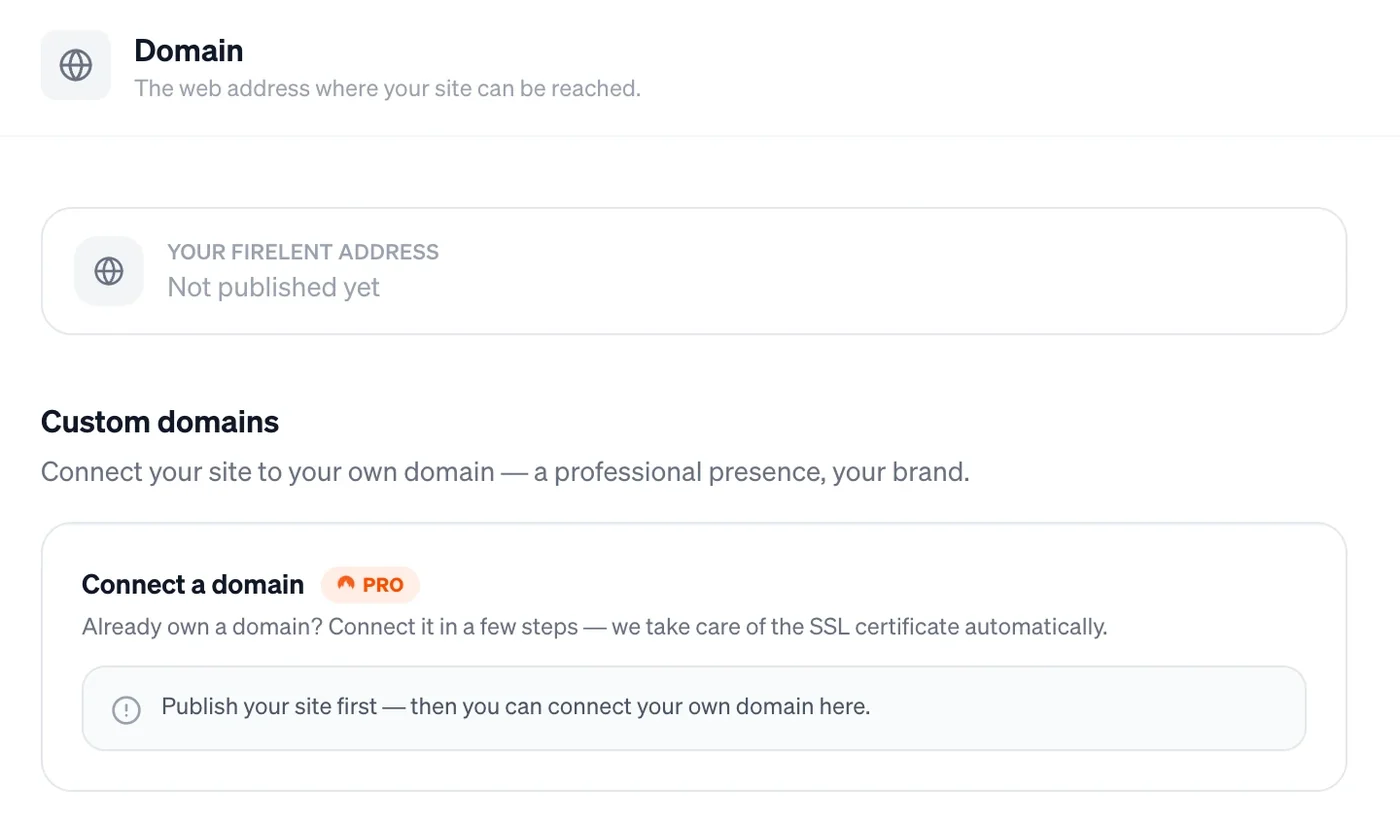
Every Firelent website goes live on its own address, like fade-co.firelent.app. That works from day one — but your own domain is easier to remember, easier to trust, and it stays yours whatever you build it with.
Connecting one takes about ten minutes of your time, plus however long your domain provider needs to pass the change on. Here's the whole way, including the part where most people get stuck.
Before you start
- A published website. A domain points to your live site, so the site has to be live first.
- A domain you own, from a provider such as IONOS, Strato, GoDaddy or Namecheap.
- Your login for that provider. You'll change two or three settings there.
- The Pro plan. Custom domains are part of Pro.
Publish your site first
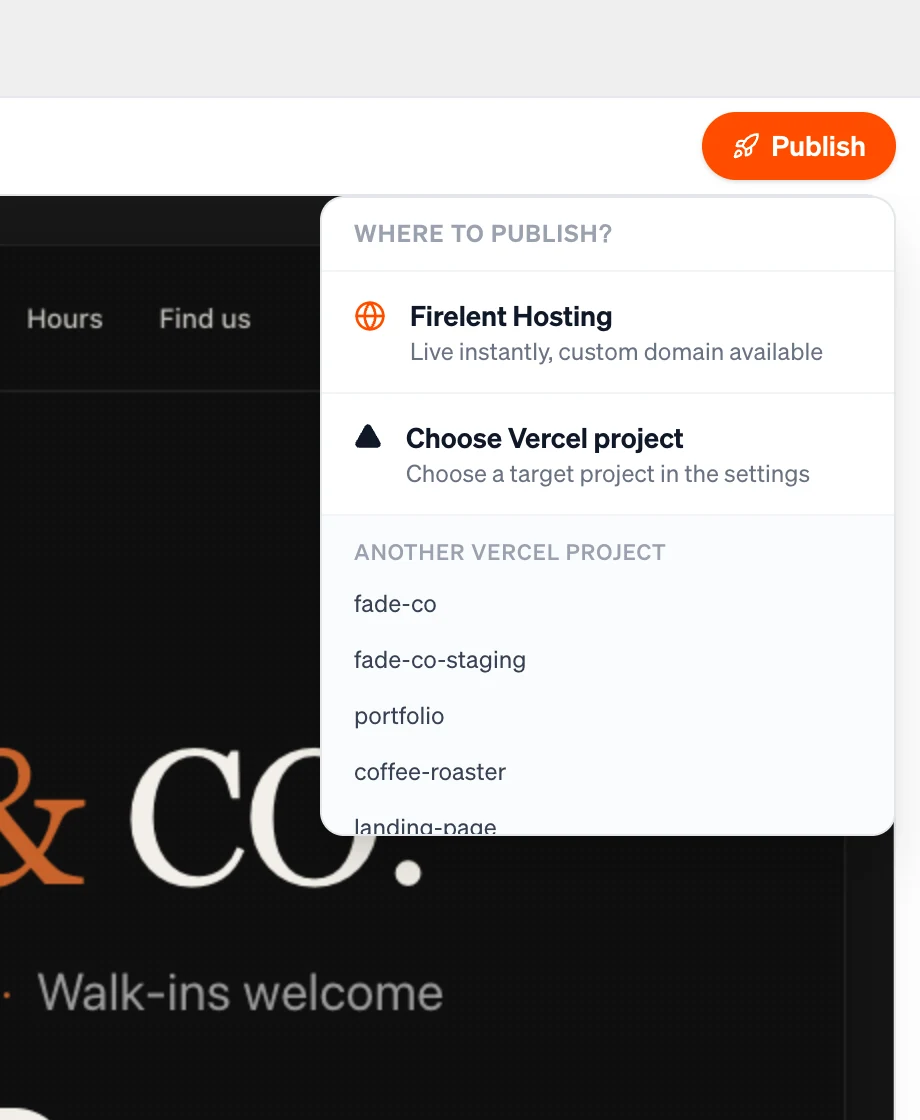
If your site isn't live yet, click Publish in the top right of the editor and choose Firelent Hosting. A few seconds later it's online at its firelent.app address.
Open it once and click around. Whatever you see there is exactly what your domain will show — so this is the moment to fix anything that bothers you.
Decide which addresses you want
myshop.com and www.myshop.com look like one address, but to the internet they're two. Most people type the short one; some still add www, and older links and printed material often use it.
Connect both, and either one leads to your site. You'll add them one after the other in the next step.
Connect the domain in Firelent
Open your project, switch to the Project tab and choose Domain. Under Connect a domain, type myshop.com and click Connect. Then do the same for www.myshop.com.
For each one, Firelent now shows the records to add under Add these records at your domain provider: — every record with a Name and a Value you can copy. Keep this page open; you'll copy from it in a moment.
Add the records at your provider
Log in to your domain provider and open the DNS settings for your domain. Depending on the provider, they're called something like DNS, DNS settings or Manage DNS.
Which records you add depends on the address:
| Address | Add | Value |
|---|---|---|
myshop.com | Two A records | 188.114.96.3 and 188.114.97.3 |
www.myshop.com | One CNAME record | custom.firelent.app |
If Firelent also shows a TXT record, add it exactly as shown.
For the name of each record, copy what Firelent shows. Two small differences between providers trip people up: many write @ for the main domain itself — if yours does, use @ — and many add your domain to the name automatically, in which case www on its own is enough.
Wait for Live
Back in Firelent, the Domain section checks your domain every few seconds while it's open. It says Waiting for DNS records… until your records are found. Then Firelent sets up the certificate, and the status turns Live.
Most changes arrive within minutes. Some providers take longer to pass them on — occasionally a few hours. Nothing is wrong while you wait; you can close the page and look again later.
If the status says Verification failed, compare each record at your provider with the ones Firelent shows. A typo in a value, a missing record or an old record still in place are the usual reasons. Fix it, remove the domain in Firelent with the trash icon, and connect it again.
Check it, then share it
Open both addresses — myshop.com and www.myshop.com — on your computer and on your phone. Look for the padlock in the address bar: Firelent issues the SSL certificate for every domain you connect, so there's nothing to buy or install.
Your firelent.app address keeps working alongside your domain, so links you've already shared won't break. Still, now's the time to update the places people find you: your Google business profile, your social media profiles, your email signature and anything you print next.
Where you are now
Your site is live on your own domain, served securely over HTTPS.